
When we think about accessibility in the context of web development, our minds often jump to building websites that cater to all users, regardless of ability. However, there’s another side to accessibility that’s rarely discussed — the accessibility of the tools and processes we use as developers. Something to keep in mind as we go through this, is that much of what we discuss here will be using tools, that many of us already use or could use but when we think about making coding accessible, is when they really shine.
Accessibility in Tools that Benefit Everyone
Just as ramps and elevators in buildings benefit people beyond those with mobility challenges (e.g., parents with push chairs or workers with heavy loads), accessibility-focused tools in development have universal benefits. Features like Emmet and Prettier save time and effort for all developers, regardless of ability.
This article is inspired by my friend Vanraj, who has quite severe cerebral palsy. Despite his limited hand movement and speech difficulties, Vanraj has been exploring web development — a journey of perseverance, creativity, and adaptability. His story highlights the challenges faced by developers who rely on accessibility tools, and the adjustments we can make to foster a more inclusive development environment, with tools many of us take for granted and maybe a few that we don’t but are still worth a look at even if you do not have any accessibility needs.
Vanraj’s Journey
Vanraj studied graphic design at university over 20 years ago but struggled to find work, perhaps due to misconceptions surrounding his disability. Years later, I asked him if he had ever tried web development and whether it interested him. It did.
Vanraj began his journey with HTML and CSS, learning the basics. Unfortunately, losing his early work was a discouraging setback. Earlier this year, I suggested he try WordPress, thinking that less typing might make things easier. However, WordPress proved challenging, so I recently encouraged him to return to hand-coding, taking a different approach — one tailored to his needs.
The Basic setup
Before diving into specific tools, it’s important to consider the foundation of a good development environment. Many built-in settings in tools like VS Code can be leveraged to improve accessibility and streamline workflows for all developers, regardless of ability.
For example, VS Code’s keyboard shortcuts and command palette allow for a more efficient, keyboard-driven experience. Features like word wrapping, line numbering, and customizable themes provide flexibility in tailoring the editor to individual needs.
Some specific settings I looked at for Vanraj included enabling “Auto Save” and setting it to save every 30 seconds. This setting ensures his work is preserved without requiring manual input, addressing his difficulty using keyboard shortcuts like Ctrl/Cmd + S.
Another helpful feature we enabled was “Auto Format on Save.” Combined with the Prettier extension, this automatically formats his code each time he saves, ensuring consistency without requiring additional steps like accessing the command palette or context menu.
To support his journey, I looked at how we could customise his development environment with tools designed to minimise mouse clicks and keyboard strokes. Starting with these built-in tools and settings ensures a strong baseline before adding extensions or external aids.
Once the foundation is set, the next step is to enhance the experience with extensions tailored for efficiency and accessibility.
Essential VS Code Extensions
The next thing I did was look at some essential VS Code Extensions. These are used by many developers regardless of accessibility needs and build up on the foundations I spoke of previously.
Emmet
Emmet enables shorthand syntax for writing HTML and CSS, allowing Vanraj to generate complex code snippets with minimal typing. For example, typing div.container>ul>li*3 expands into a structured HTML snippet in seconds. This is a feature that is built right into Visual Studio Code.

Auto Rename Tag
Auto Rename Tag synchronises changes between opening and closing tags, reducing the need for manual edits. Notice as you change the the opening tag (on the top line) from a div to a section, the closing tab (on the bottom line) updates automatically.

Auto Close Tag
Auto Close Tag automatically adds closing tags as you type opening ones, saving effort and ensuring accuracy. It is similar to Emmet but not as powerful. Where emmet simplifies the written code and allows you to chain elements together, generating multiple simultaneously, this is requires you to enter a complete and valid opening tag, and then generates the closing tag automatically.
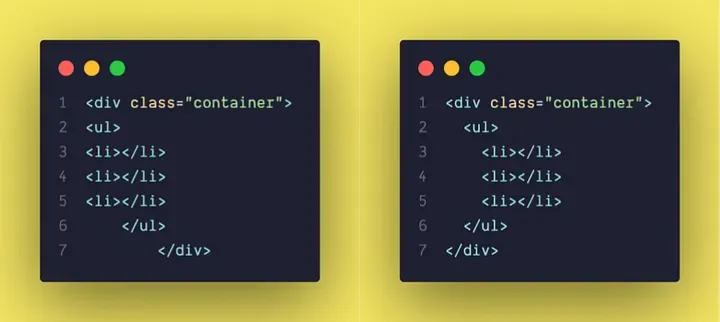
Prettier
Prettier automatically formats code on save. The code on the left is a bit all over the place, on the right opening and closing tags in our html for the div and ul elements are aligned, this consistent style makes code more readable without any manual effort.
Save Button
A simple but effective extension that adds a Save button to the toolbar, making it easier for someone like Vanraj, who is not so easily able to use keyboard short cuts to save his work with a simple combo key stroke.
A Different Approach: React instead of plain old HTML
Before we talk of the next set of extensions I want to talk about why I am proposing a frontend framework instead of vanilla HTML and CSS. Vanraj is only, at least at this stage, creating relatively simple HTML page/s but as we all know HTML can become quite overwhelming for the most able of us but with Vanraj’s additional challenges I though it was worth taking a different approach. An approach that would allow him to break the page down into smaller manageable components.
React might seem like overkill for a simple portfolio or CV site and it certainly has a steeper learning curve, but it offers significant benefits for someone like Vanraj. By building reusable components, he can reduce the amount of repetitive work and reduce unintentional edits caused by sudden unintentional mouse movements, so making page building more efficient and as such more accessable to him.
Something I haven’t yet taken the time to learn is Vue JS, which is often praised for its simplicity and lower learning curve compared to React. This simplicity could be especially beneficial for Vanraj, as it might allow him to focus on creating and reusing components without being overwhelmed by the structure and setup of the React framework. While Vanraj is refreshing his knowledge of HTML and CSS and getting to grips with the tools, my plan is to learn Vue JS to compare and determine if it might better suit his needs.
So now we got that out of the way let's continue with our exploration of the prescribed extensions. Starting with …
VS Code ES7 React/Redux/React-Native/JS Snippets
This extension offers predefined snippets for React components, such as creating functional components or importing dependencies, significantly reducing boilerplate code.

GitHub Integration
Doing this sort of work takes Vanraj a lot of time and physical concentration, so you can imagine his frustration when the first time round he lost all his work due to a break in. With that in mind, though again, maybe overkill for his projects, I introduced him to GitHub.
Managing version control through VS Code’s GitHub integration reduces reliance on terminal commands. Features like “Initialize Repository” and “Publish to GitHub” are accessible with just a few clicks. And then we can easily Stage and Commit changes with just a few clicks rather than typing out commands in the terminal. These are small adjustments that make are making coding more accessible to Vanraj.

NPM Scripts
NPM Scripts is an extension that provides a visual interface to manage and run NPM commands directly in VS Code. Instead of typing lengthy commands in the terminal, Vanraj can click a button to start his development server or install dependencies.

Rounding up
This is by no means an exhaustive list and Vanraj, with a little help from me and the wider development community are still looking for tools that can further enhance his development experience, including tools outside of the IDE and software in general. Some tools that he is yet to explore fully are things like Mice and Keyboards and potentially other input devices.
Final Thoughts
Vanraj’s journey is a testament to resilience and the impact of accessible tools. By making small changes in our workflows and investing in inclusivity, we can create opportunities for everyone — not just those who face unique challenges, but all developers looking to work more efficiently and effectively.
What steps can you take today to make your development environment more inclusive? Do you have tools, tips, or ideas that could support someone like Vanraj? Share them — we all have a role to play in building a more accessible future for coding.